Changing Startup Logo on Audi A6
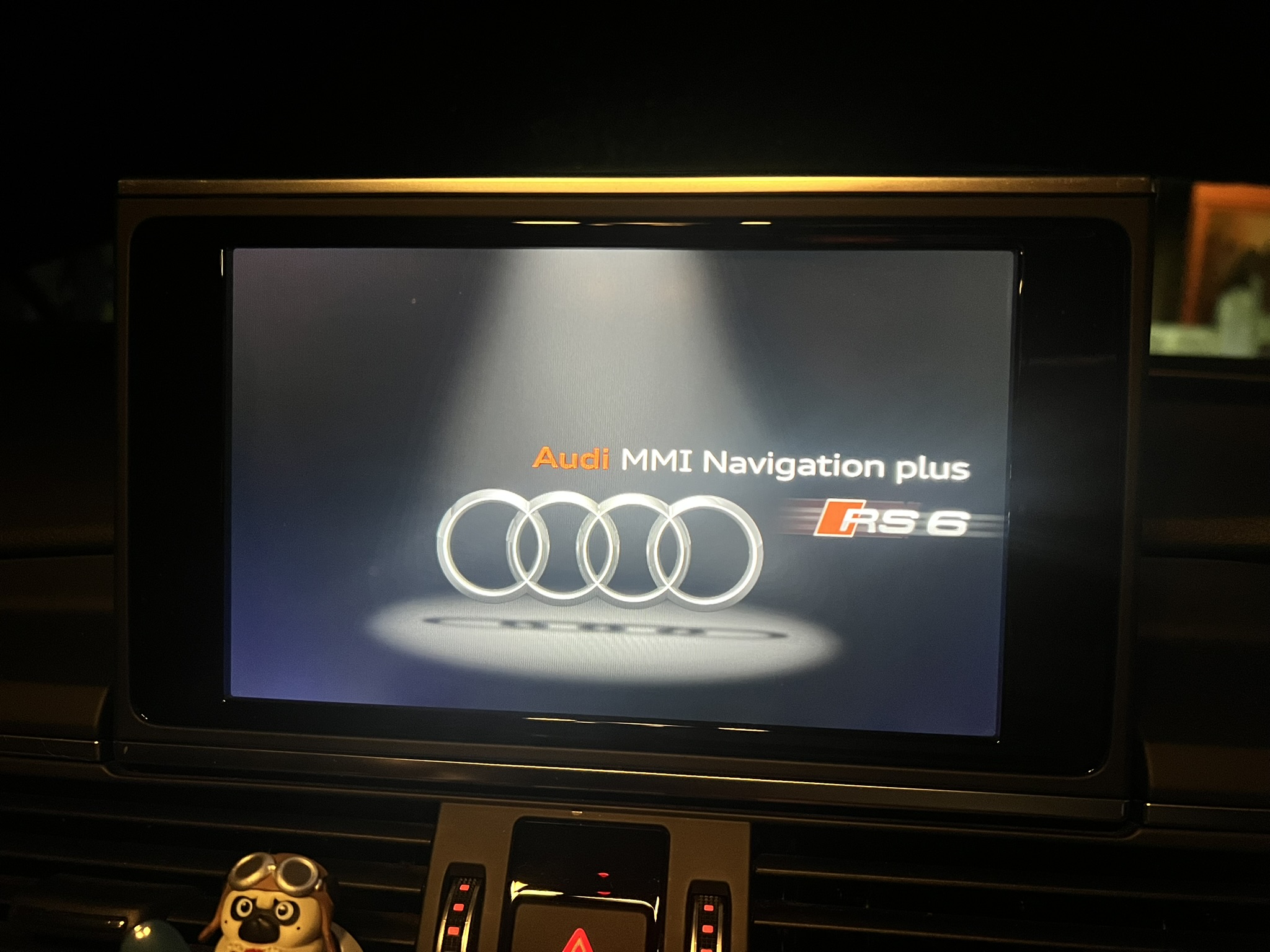
OK, so this won’t give you any extra horsepower, but it looks cool. The MMI and Instruments module in the Audi A6 (and probably other models) contains start up screens for the different sub models, i.e. A6, S6 or RS6. The logo which appears at start up is dependent on the coding (configuration) of that car when it left the factory.
With VCDS you can change the coding to display the logo of your choice.
Using VCDS or any other tool to change your coding, or Adaptation values is DANGEROUS. If you make changes without full understanding, you can break your car. Don’t do it!
TL;DR if you already know how to use VCDS
MMI Screen
Control Module 5F - Information Electr.
Long Coding, Byte 18
Dashboard Display
Control Module 17 - Instruments
Long Coding, Byte 9
Full instructions
MMI Screen
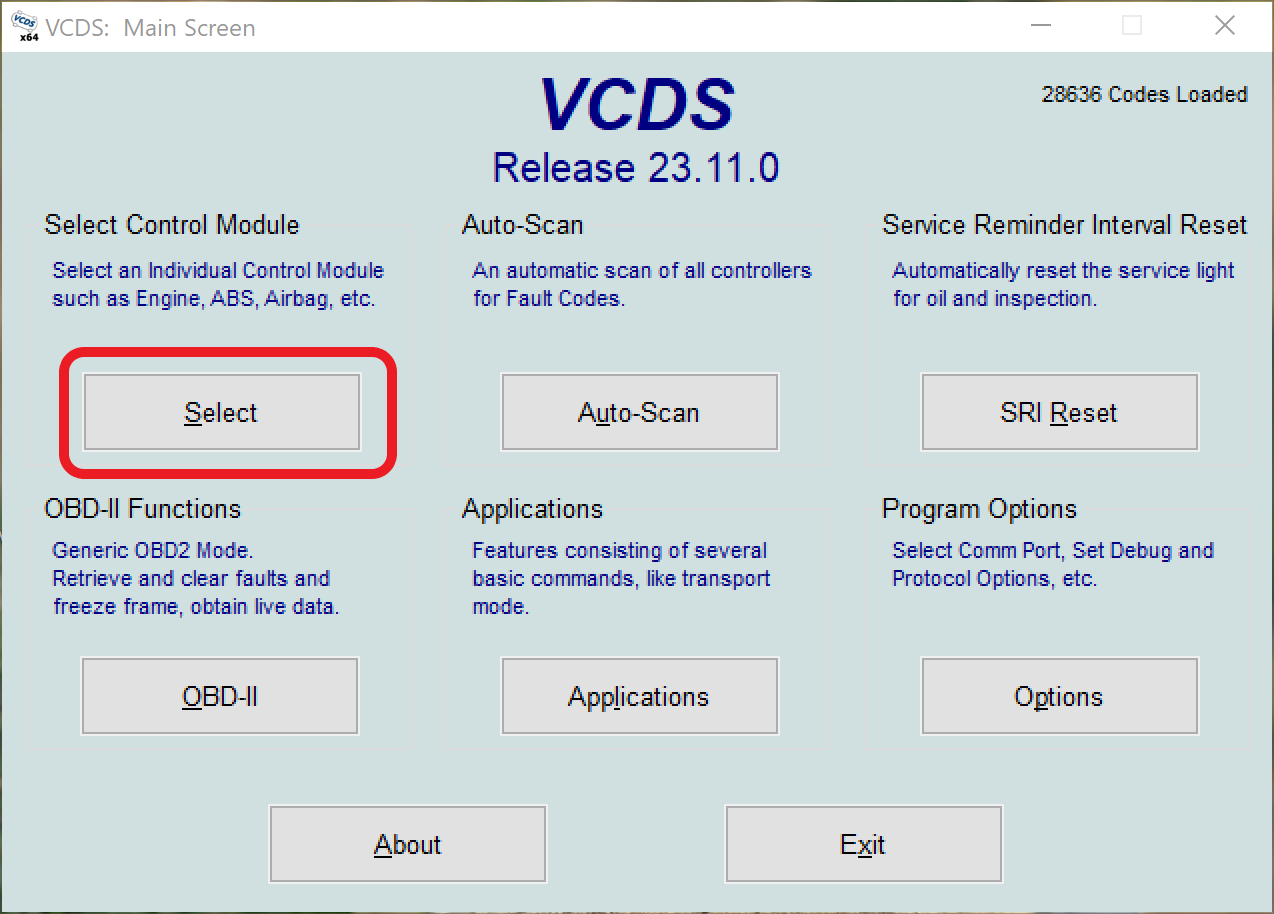
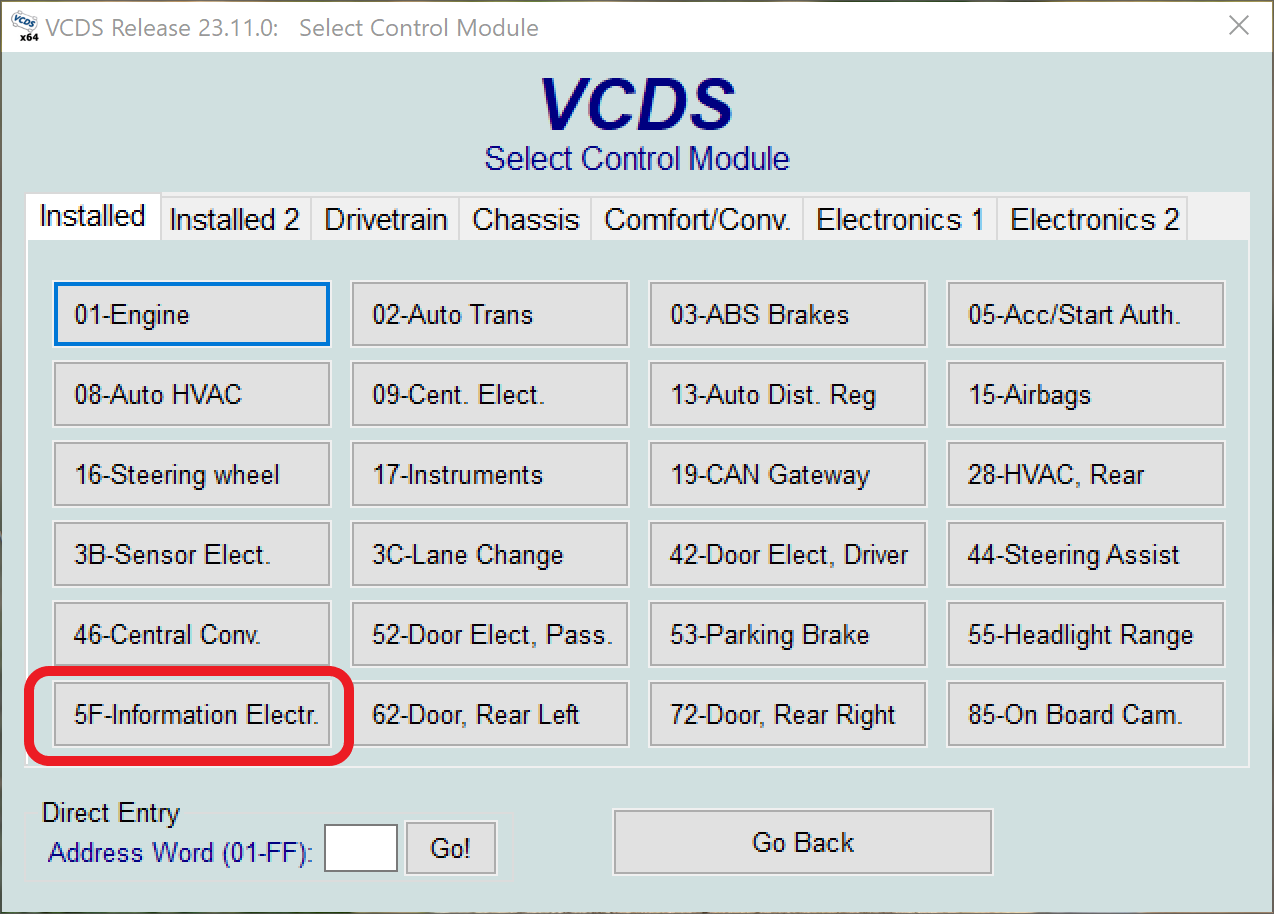
The following screenshots show the process to follow.
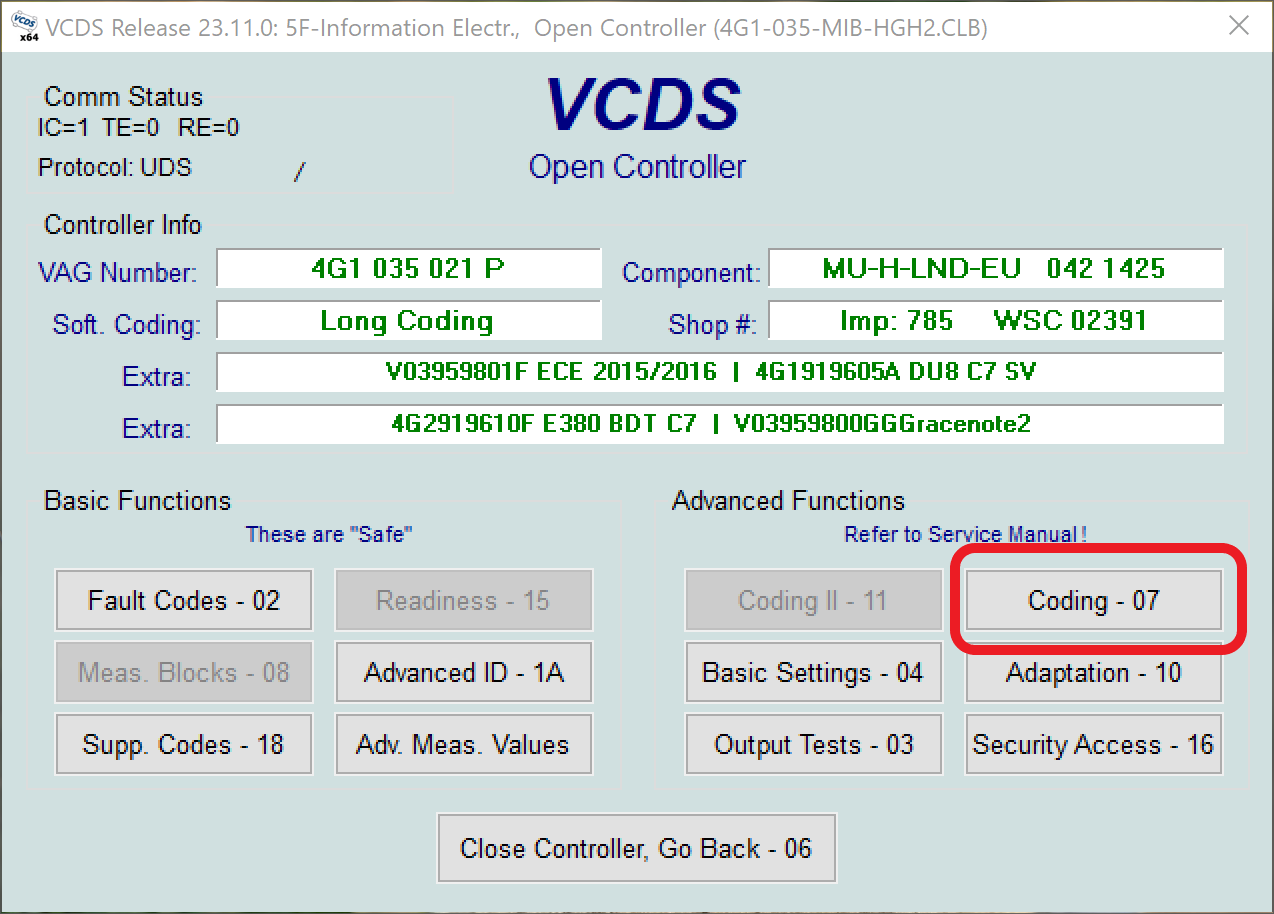
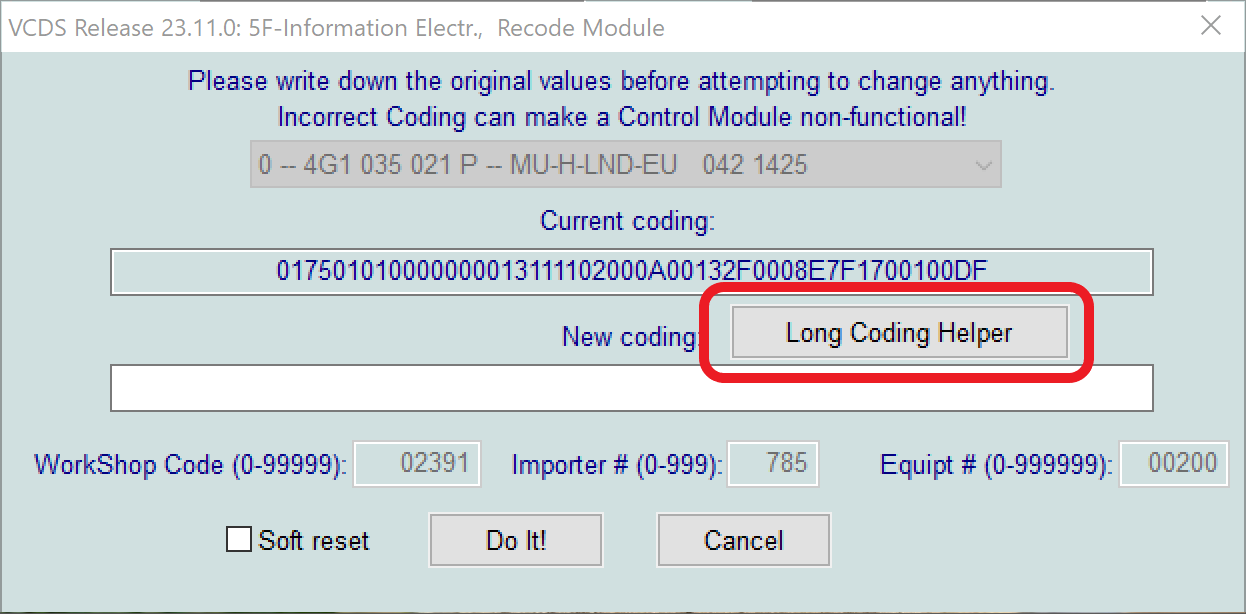
Now comes the fun part. Use the Long Coding Helper to navigate to Byte 18. The drop-down menu will change, and show you the available options. Select the one you like, and close the window:
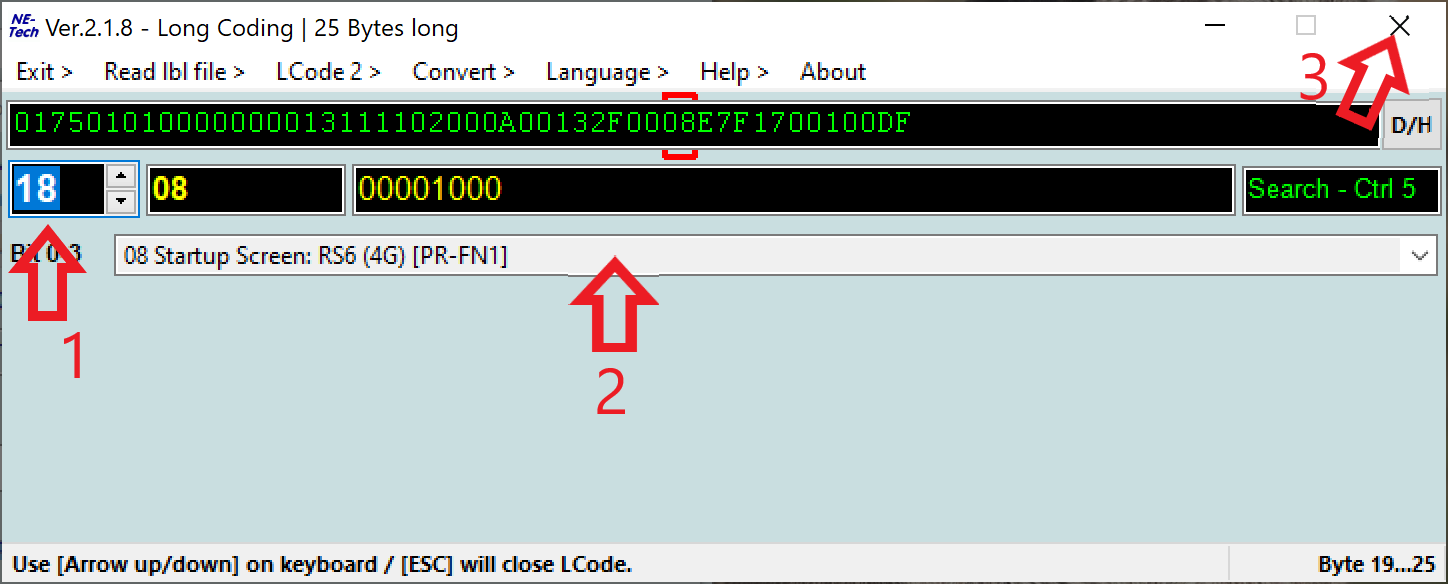
The new coding will be displayed. It is a very good idea to take a screenshot at this point, or record the coding so that it can be set back to default in case of problems:
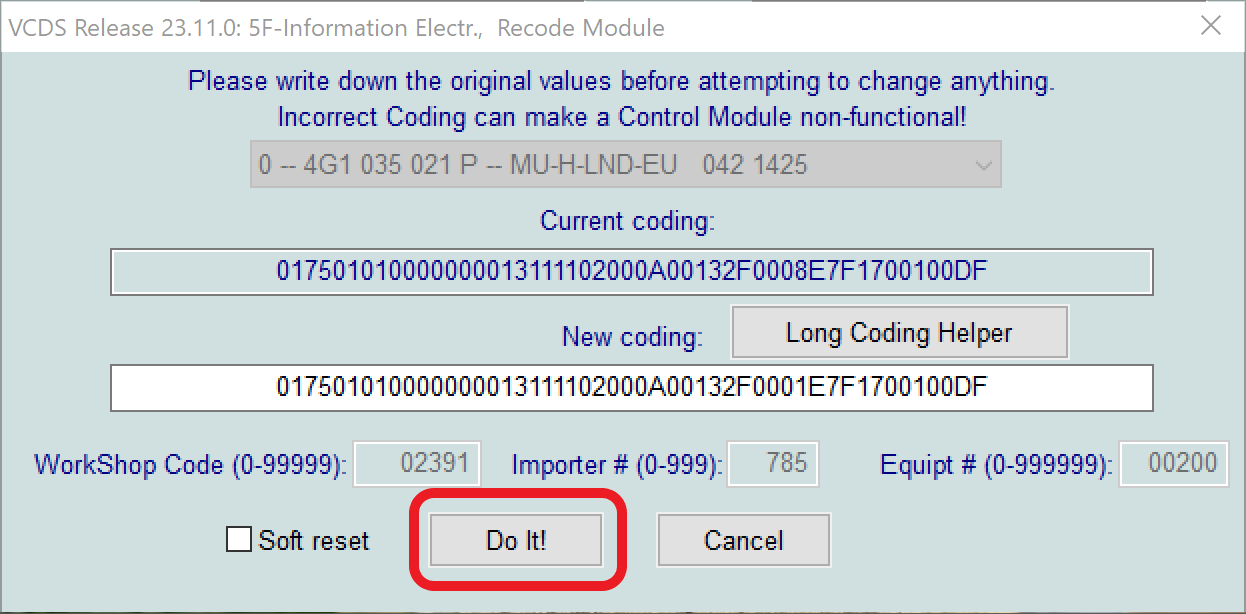
If you are happy, select Do It! and the new coding will be written to the module. Turn the ignition off and on again to see the new logo.
Dashboard

The following screenshots show the process to follow. It’s basically the same process as above, but we will be connecting to the Instruments control module, not the MMI one.
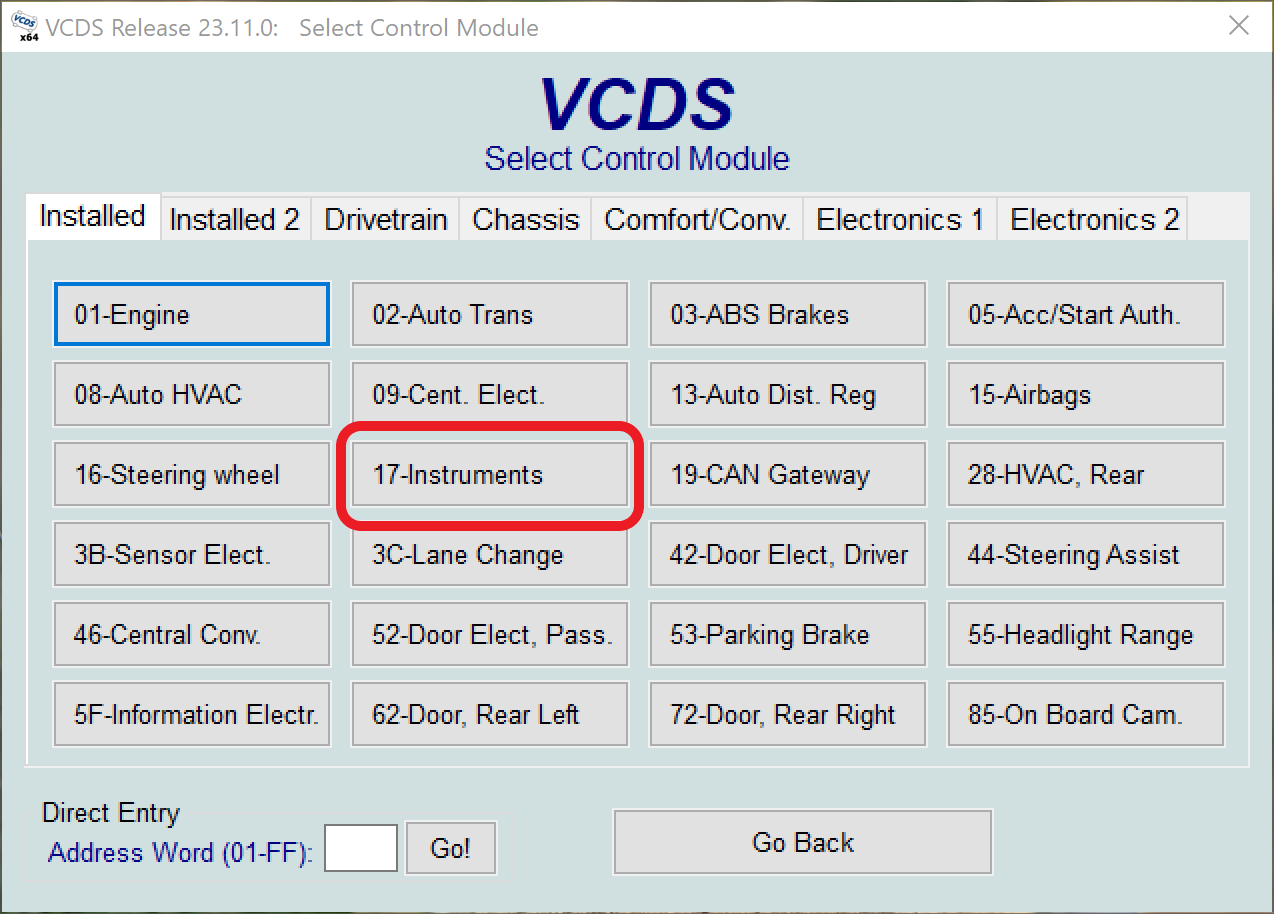
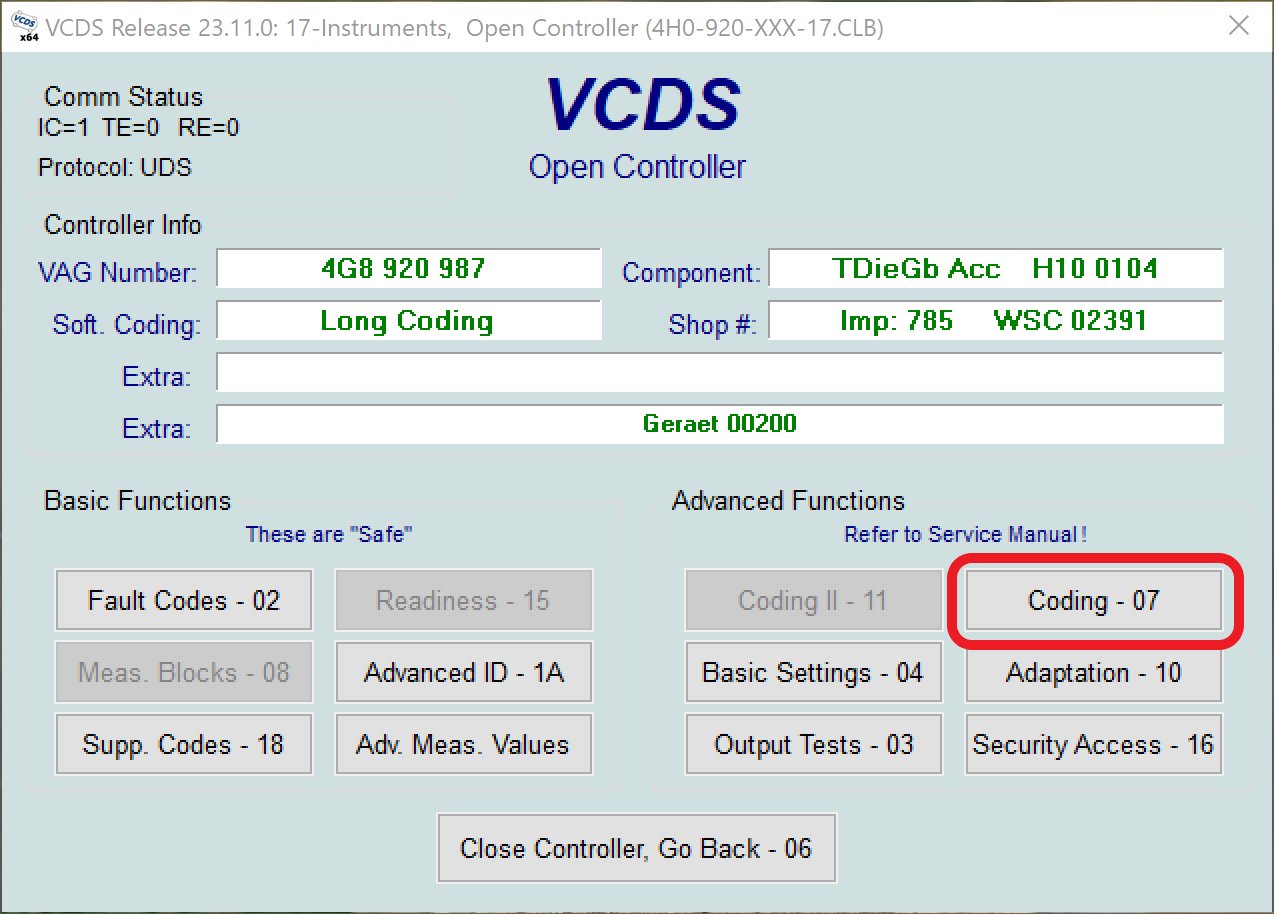
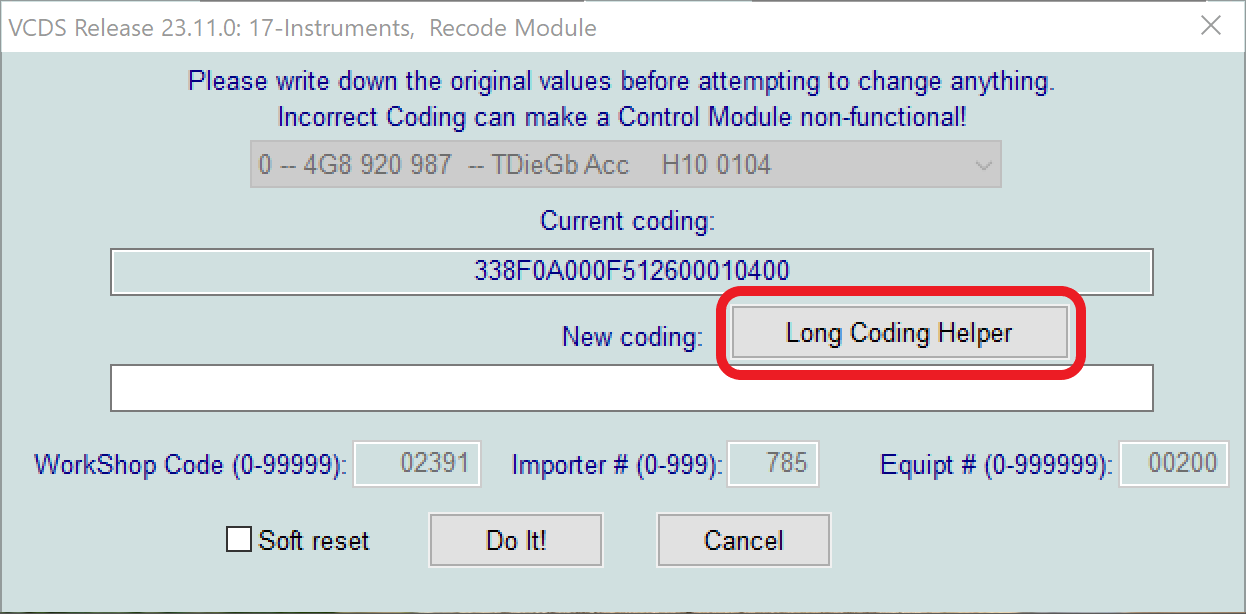
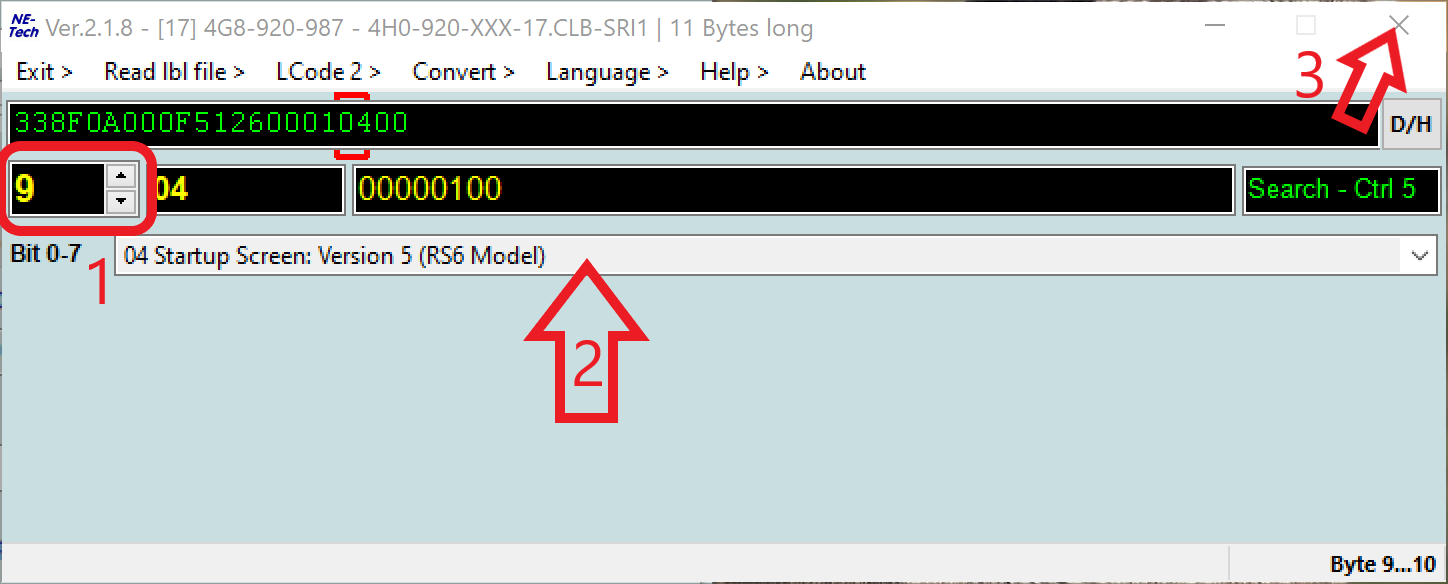
Now comes the fun part. Use the Long Coding Helper to navigate to Byte 9. The drop-down menu will change, and show you the available options. Select the one you like, and close the window:
The new coding will be displayed. It is a very good idea to take a screenshot at this point, or record the coding so that it can be set back to default in case of problems:
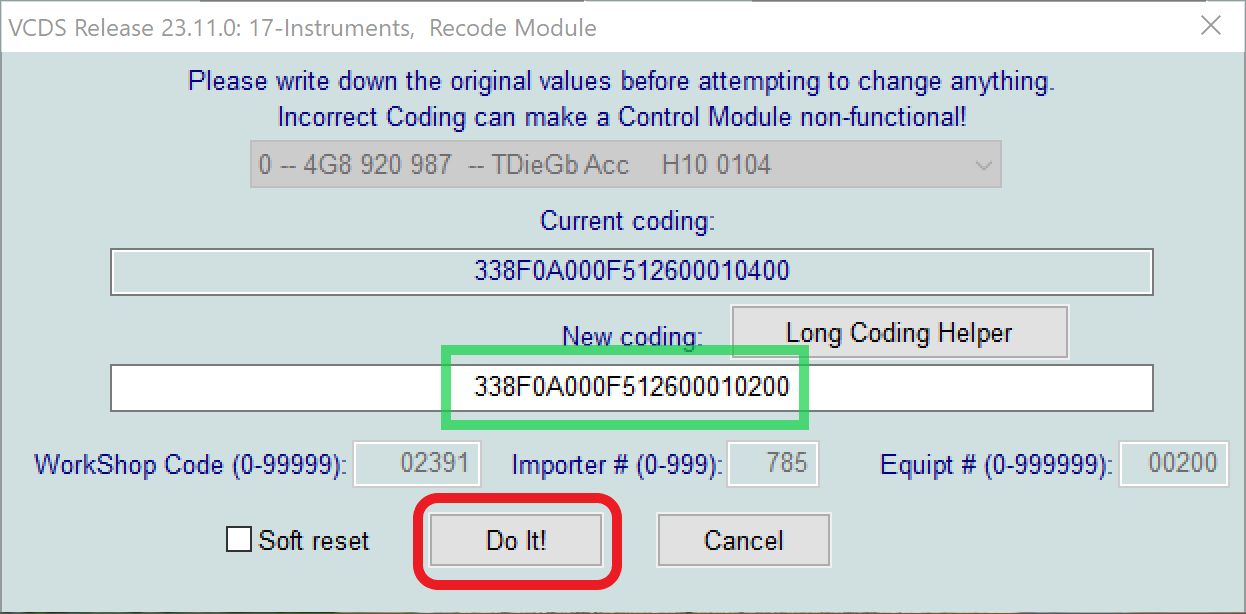
If you are happy, select Do It! and the new coding will be written to the module. Turn the ignition off and on again to see the new logo.